

할 일 앱에 기능이 조금씩 붙기 시작하면, 어느 순간부터는 "추가"보다 "찾기"가 더 중요해집니다. 항목이 몇 개 안 될 때는 그냥 눈으로 훑어도 괜찮지만, 조금만 쌓여도 방금 적은 할 일이 어디 갔는지 다시 찾게 되는 순간이 생깁니다.
이번 편에서는 그 지점을 해결해보겠습니다. 다만 이번에도 범위를 크게 벌리지는 않겠습니다. 검색창 하나 넣고 끝내는 게 아니라, 지금 입력한 검색어에 맞는 항목만 바로 보여주는 흐름까지 붙여보겠습니다. 이렇게 해야 검색 기능이 왜 편한지, 그리고 현재 값을 따로 들고 있으면서 화면을 다시 그린다는 감각이 조금 더 또렷해집니다.
중요한 점도 하나 있습니다. 이번 검색은 기존 필터와 같이 움직이게 만들겠습니다. 즉, 전체 보기에서 검색할 수도 있고, 진행 중 보기 안에서만 검색할 수도 있고, 완료 보기 안에서만 검색할 수도 있습니다. 이 단계에서 이 연결이 한 번 보이면, 상태를 여러 개 동시에 다루는 감각도 훨씬 좋아집니다.
| 겉으로 보이는 변화 | 실제로 추가되는 것 | 가장 먼저 봐야 할 지점 |
|---|---|---|
| 검색창과 검색 지우기 버튼이 생긴다 | 검색 상태가 하나 더 생긴다 | 지금 어떤 검색어를 기준으로 보여주는지 따로 기억하는지 본다 |
| 같은 목록이라도 보이는 항목 수가 달라진다 | 필터 결과 위에 검색 조건이 한 번 더 얹힌다 | 필터와 검색이 어떤 순서로 겹치는지 본다 |
| 검색 중에는 이동 버튼이 잠긴다 | 보이는 항목 일부만 잡고 순서를 바꾸지 않도록 제한한다 | 무엇을 일부러 막아야 덜 헷갈리는지 본다 |
이번 글의 핵심 한 줄
검색 기능의 핵심은 입력창을 하나 더 만드는 일이 아니라, 현재 필터 상태와 검색 상태를 함께 들고 있으면서 보여줄 목록을 다시 고르는 데 있습니다.
왜 지금 검색 기능이 필요한가
지금까지 만든 할 일 앱은 이미 꽤 많은 기능을 갖고 있습니다. 추가, 완료 체크, 삭제, 전체 삭제, 수정, 순서 변경까지 들어갔으니 작은 앱으로는 제법 쓸 만한 상태입니다. 그런데 실제로 써보면 금방 느끼는 순간이 있습니다. 목록이 길어질수록, 새로운 기능보다 원하는 항목을 빨리 찾는 기능이 더 자주 손에 걸린다는 점입니다.
특히 지금 구조에서는 진행 중 보기와 완료 보기까지 나뉘어 있기 때문에, 검색 기능이 붙으면 체감이 더 커집니다. 같은 목록이라도 지금 어떤 보기 상태에 있는지, 그 안에서 어떤 단어를 찾고 싶은지가 함께 움직이기 때문입니다. 이건 단순히 입력창 하나를 추가하는 문제가 아니라, 현재 필터 상태와 검색 상태를 같이 유지하면서 화면을 다시 그리는 문제에 가깝습니다.
- 목록이 길어졌을 때 원하는 항목을 더 빨리 찾을 수 있습니다.
- 필터와 검색이 같이 움직이는 구조를 연습할 수 있습니다.
- 배열 전체가 아니라 지금 보여줄 항목만 다시 고르는 감각을 익히기 좋습니다.
- 기존 기능을 유지한 채 상태 하나를 더 얹는 경험이 됩니다.
핵심 포인트
검색 기능이 들어오면 앱은 단순히 항목을 보여주는 수준을 넘어서, 지금 어떤 조건으로 보여주고 있는지까지 설명할 수 있어야 합니다.
이번 편에서는 어디까지 만들 것인가
이번 편도 범위를 분명하게 잘라두겠습니다. 검색 기능이라고 해서 태그 검색, 고급 검색, 최근 검색어까지 한 번에 갈 필요는 없습니다. 지금 단계에서는 아래 정도면 충분합니다.
- 검색 입력창을 추가합니다.
- 입력할 때마다 검색 결과가 바로 반영되게 만듭니다.
- 검색어 지우기 버튼도 같이 둡니다.
- 전체, 진행 중, 완료 필터와 검색이 함께 동작하게 만듭니다.
- 검색 중일 때는 순서 변경 버튼을 비활성화합니다.
- 수정 중에 검색어를 바꾸면 편집 상태는 정리하고 다시 렌더링합니다.
반대로 이번 편에서는 아래 내용은 일부러 넣지 않겠습니다.
- 여러 필드를 동시에 검색하는 기능
- 완전 일치 검색, 정규식 검색
- 검색어를 브라우저 저장소에 따로 저장하는 기능
- 검색 히스토리나 최근 검색어 기능
이렇게 해야 이번 단계에서 진짜 봐야 할 것이 흐려지지 않습니다. 지금 중요한 건 "검색 기능을 멋지게 만든다"보다, 입력값 하나가 현재 화면 상태에 어떻게 연결되는지를 끝까지 읽는 데 있습니다.
10분 실습: 검색이 왜 상태 기능인지 먼저 느껴보기
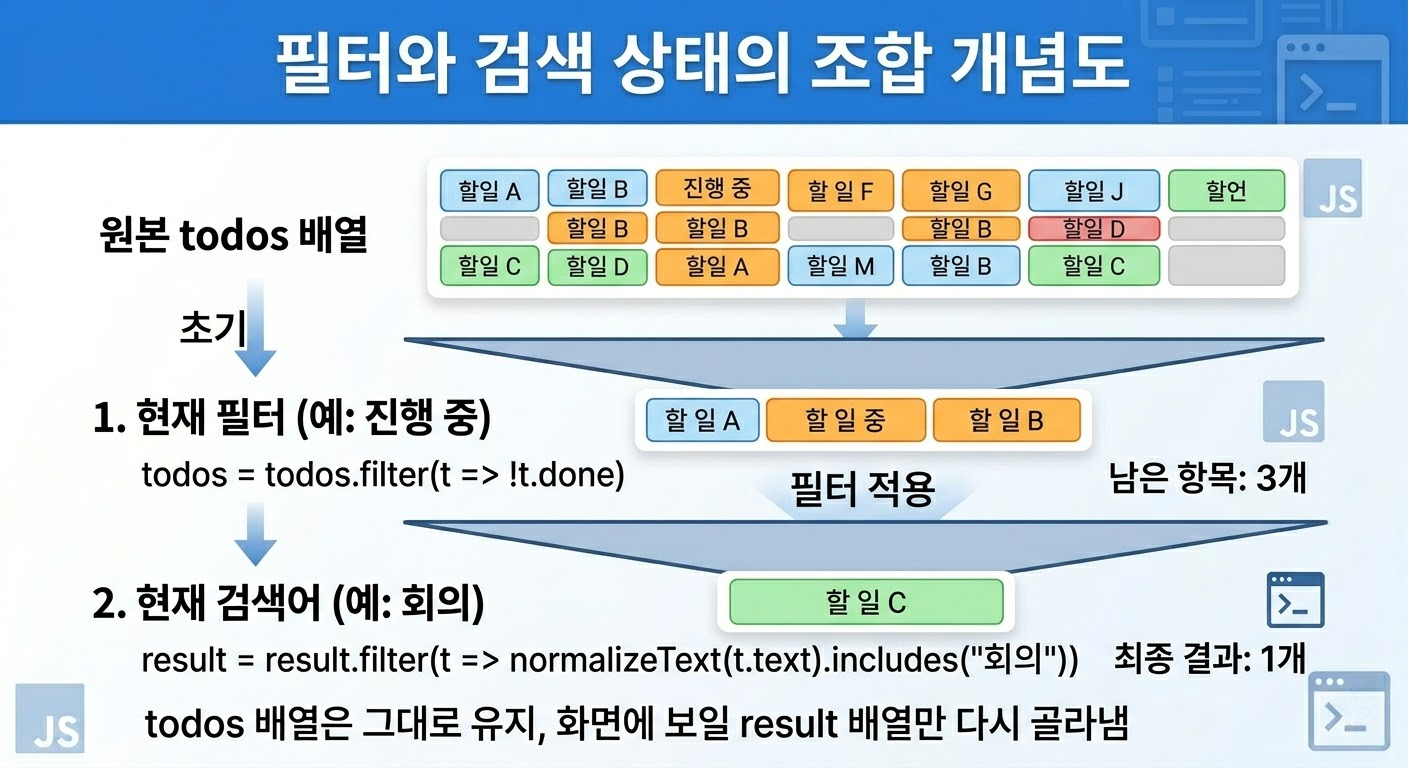
코드를 보기 전에 짧게 상상 실험부터 해보는 편이 좋습니다. 아래처럼 세 개의 항목이 있다고 해보겠습니다.
1. 운동하기      - 미완료
2. 회의 자료 정리 - 완료
3. 회의실 예약    - 미완료
이 상태에서 검색창에 회의를 입력하면, 전체 보기에서는 2번과 3번이 보여야 합니다. 그런데 같은 검색어여도 진행 중 보기에서는 3번만 보여야 하고, 완료 보기에서는 2번만 보여야 합니다.
이 지점이 중요합니다. 검색 기능은 항목을 없애는 게 아니라, 현재 필터 위에 검색 조건을 한 번 더 얹는 기능입니다. 즉, 실제 데이터는 그대로 있고, 지금 보여주는 기준만 달라집니다.
| 상태 | 보여야 하는 항목 |
|---|---|
| 전체 + 회의 | 회의 자료 정리, 회의실 예약 |
| 진행 중 + 회의 | 회의실 예약 |
| 완료 + 회의 | 회의 자료 정리 |
즉, 이번 기능의 핵심은 입력창을 만드는 데 있지 않습니다. 검색 상태를 따로 기억하고, 그 상태를 필터 상태와 함께 화면에 적용한다는 구조를 먼저 잡는 데 있습니다. 이 감각이 먼저 잡히면 JavaScript도 훨씬 덜 복잡하게 보입니다.
핵심 포인트
검색 기능은 "단어 찾기"보다 현재 상태를 하나 더 들고 있으면서 보여줄 결과를 다시 고르는 구조라고 이해하는 편이 훨씬 좋습니다.
HTML 수정: 검색 입력창과 지우기 버튼 추가
이번 기능은 HTML 최상단 구조를 크게 흔들지 않습니다. 입력창, 요약 영역, 필터 버튼, 메시지, 목록 영역은 그대로 두고, 그 사이에 검색 구역을 하나 더 넣는 정도면 충분합니다. 이 정도만 해도 화면 구조가 훨씬 자연스럽게 보입니다.
index.html은 아래처럼 정리하면 됩니다.
<!DOCTYPE html>
<html lang="ko">
<head>
  <meta charset="UTF-8">
  <meta
    name="viewport"
    content="width=device-width, initial-scale=1.0"
  >
  <title>오늘 할 일 앱</title>
  <link rel="stylesheet" href="style.css">
  <script defer src="script.js"></script>
</head>
<body>
  <main class="app">
    <section class="panel">
      <div class="panel-header">
        <p class="eyebrow">Search Practice</p>
        <h1>오늘 할 일</h1>
        <p class="description">
          검색어에 맞는 항목만 빠르게 찾을 수 있게 만드는 단계입니다.
        </p>
      </div>

      <div class="composer">
        <form id="todoForm" class="todo-form">
          <label for="todoInput">할 일 입력</label>
          <div class="input-row">
            <input
              id="todoInput"
              type="text"
              placeholder="예: 검색 기능 점검하기"
            >
            <button
              id="submitButton"
              type="submit"
              class="primary-button"
            >
              추가
            </button>
          </div>
        </form>
      </div>

      <div class="toolbar">
        <p
          id="summaryText"
          class="summary"
        >
          전체 0개 · 남은 할 일 0개
        </p>
        <button
          id="clearAllButton"
          type="button"
          class="secondary-button"
        >
          전체 삭제
        </button>
      </div>

      <div class="filter-section">
        <div
          class="filter-group"
          role="group"
          aria-label="필터 선택"
        >
          <button
            type="button"
            class="filter-button is-active"
            data-filter="all"
            aria-pressed="true"
          >
            전체
          </button>
          <button
            type="button"
            class="filter-button"
            data-filter="active"
            aria-pressed="false"
          >
            진행 중
          </button>
          <button
            type="button"
            class="filter-button"
            data-filter="completed"
            aria-pressed="false"
          >
            완료
          </button>
        </div>
      </div>

      <div class="search-section">
        <label for="searchInput">검색</label>
        <div class="search-row">
          <input
            id="searchInput"
            type="text"
            placeholder="예: 수정, 배포, 회의"
          >
          <button
            id="clearSearchButton"
            type="button"
            class="secondary-button"
          >
            검색 지우기
          </button>
        </div>
      </div>

      <p
        id="message"
        class="message"
      >
        할 일을 입력하고 추가 버튼을 눌러보세요.
      </p>

      <div class="list-section">
        <ul
          id="todoList"
          class="todo-list"
        ></ul>
      </div>
    </section>
  </main>
</body>
</html>
이번 HTML 수정에서 핵심은 두 가지입니다. 하나는 searchInput이고, 다른 하나는 clearSearchButton입니다. 즉, 사용자가 검색어를 입력하는 자리와, 현재 검색 상태를 바로 지울 수 있는 버튼을 분명하게 나눠두는 구조입니다.
이런 구분이 중요한 이유는 검색 기능이 단순히 값을 읽는 것에서 끝나지 않기 때문입니다. 검색어가 있다는 건 곧 "지금 전체 목록을 그대로 보여주고 있지 않다"는 뜻이기도 합니다. 그래서 입력창과 지우기 버튼이 같이 있어야 현재 상태를 사용자가 더 쉽게 이해할 수 있습니다.
핵심 포인트
HTML 단계에서는 검색창을 하나 더 넣는 것보다, 검색 상태를 시작하고 끝낼 수 있는 구조를 같이 만드는 것이 더 중요합니다.
CSS 수정: 검색 영역과 비활성 상태를 분명하게 보이기
검색 기능은 동작만큼이나 지금 검색 중인지 아닌지가 눈에 보여야 체감이 납니다. 그래서 이번 CSS의 핵심은 화려한 꾸밈보다 검색 입력창, 지우기 버튼, 비활성 상태가 분명하게 읽히게 만드는 것입니다.
style.css는 아래처럼 정리하면 됩니다.
* {
  box-sizing: border-box;
}

body {
  margin: 0;
  font-family: Arial, "Apple SD Gothic Neo", "Noto Sans KR", sans-serif;
  background: #f3f4f6;
  color: #111827;
}

.app {
  width: min(760px, calc(100% - 32px));
  margin: 48px auto;
}

.panel {
  background: #ffffff;
  border-radius: 20px;
  padding: 32px;
  box-shadow: 0 14px 32px rgba(15, 23, 42, 0.08);
}

.panel-header {
  margin-bottom: 24px;
}

.eyebrow {
  margin: 0 0 12px;
  font-size: 13px;
  font-weight: 700;
  letter-spacing: 0.05em;
  text-transform: uppercase;
  color: #6b7280;
}

h1 {
  margin: 0 0 12px;
  font-size: 32px;
  line-height: 1.2;
}

.description {
  margin: 0;
  line-height: 1.7;
  color: #374151;
}

.composer {
  margin-top: 24px;
}

label {
  display: block;
  margin-bottom: 8px;
  font-weight: 700;
}

.input-row,
.search-row {
  display: flex;
  gap: 12px;
}

input[type="text"] {
  flex: 1;
  padding: 14px 16px;
  border: 1px solid #d1d5db;
  border-radius: 14px;
  font: inherit;
}

button {
  font: inherit;
}

.primary-button {
  border: none;
  border-radius: 14px;
  padding: 14px 18px;
  font-weight: 700;
  cursor: pointer;
  background: #111827;
  color: #ffffff;
}

.secondary-button,
.delete-button,
.inline-button,
.cancel-button,
.filter-button,
.move-up-button,
.move-down-button {
  border-radius: 14px;
  padding: 12px 14px;
  font-weight: 700;
  cursor: pointer;
  background: #ffffff;
  color: #111827;
  border: 1px solid #d1d5db;
}

.save-button {
  border: none;
  border-radius: 14px;
  padding: 12px 14px;
  font-weight: 700;
  cursor: pointer;
  background: #111827;
  color: #ffffff;
}

.primary-button:disabled,
.secondary-button:disabled,
.delete-button:disabled,
.inline-button:disabled,
.cancel-button:disabled,
.save-button:disabled,
.filter-button:disabled,
.move-up-button:disabled,
.move-down-button:disabled,
input:disabled {
  cursor: not-allowed;
  opacity: 0.5;
}

.toolbar {
  margin-top: 18px;
  display: flex;
  justify-content: space-between;
  align-items: center;
  gap: 12px;
}

.summary {
  margin: 0;
  color: #111827;
  font-weight: 700;
  line-height: 1.6;
}

.filter-section,
.search-section {
  margin-top: 16px;
}

.filter-group {
  display: flex;
  gap: 10px;
  flex-wrap: wrap;
}

.filter-button {
  border-radius: 999px;
}

.filter-button.is-active {
  background: #111827;
  color: #ffffff;
  border-color: #111827;
}

.message {
  margin: 14px 0 0;
  line-height: 1.6;
  color: #6b7280;
}

.list-section {
  margin-top: 24px;
}

.todo-list {
  list-style: none;
  margin: 0;
  padding: 0;
}

.todo-item {
  display: flex;
  justify-content: space-between;
  align-items: center;
  gap: 12px;
  padding: 16px 18px;
  border: 1px solid #e5e7eb;
  border-radius: 16px;
  background: #f9fafb;
}

.todo-item + .todo-item {
  margin-top: 12px;
}

.todo-item.editing {
  border-color: #111827;
  background: #ffffff;
}

.todo-left {
  display: flex;
  align-items: center;
  gap: 12px;
  min-width: 0;
  flex: 1;
}

.todo-left span {
  line-height: 1.6;
  word-break: break-word;
}

.todo-edit {
  flex: 1;
}

.edit-input {
  width: 100%;
  padding: 12px 14px;
  border: 1px solid #111827;
  border-radius: 12px;
  font: inherit;
}

.todo-actions {
  display: flex;
  gap: 8px;
  flex-wrap: wrap;
  justify-content: flex-end;
}

.todo-item.done span {
  text-decoration: line-through;
  color: #9ca3af;
}

@media (max-width: 640px) {
  .app {
    margin: 32px auto;
  }

  .panel {
    padding: 24px;
  }

  .input-row,
  .search-row {
    flex-direction: column;
  }

  .toolbar {
    flex-direction: column;
    align-items: stretch;
  }

  .filter-group {
    width: 100%;
  }

  .filter-button {
    flex: 1 1 auto;
  }

  .todo-item {
    flex-direction: column;
    align-items: stretch;
  }

  .todo-actions {
    width: 100%;
  }

  .inline-button,
  .save-button,
  .cancel-button,
  .delete-button,
  .move-up-button,
  .move-down-button {
    flex: 1 1 auto;
  }
}
이번 CSS에서 특히 봐야 할 부분은 세 군데입니다.
- search-section : 검색 영역이 필터 구역과 자연스럽게 이어지도록 만듭니다.
- search-row : 입력창과 지우기 버튼을 한 줄로 묶습니다.
- secondary-button:disabled : 검색어가 없을 때 지우기 버튼이 눌릴 것처럼 보이지 않게 만듭니다.
즉, 이번 CSS는 새로운 디자인을 만드는 작업이 아니라, 검색 기능이 들어온 뒤 화면이 답답해 보이지 않게 정리하는 작업에 가깝습니다. 검색창은 자주 쓰는 요소라서, 이 부분이 흐리면 작은 앱도 금방 복잡해 보이기 쉽습니다.
핵심 포인트
검색 UI는 화려함보다 지금 검색 중인지, 지울 수 있는 상태인지가 분명하게 보이는 것이 더 중요합니다.
JavaScript 수정: 검색 상태와 목록 렌더링 연결하기
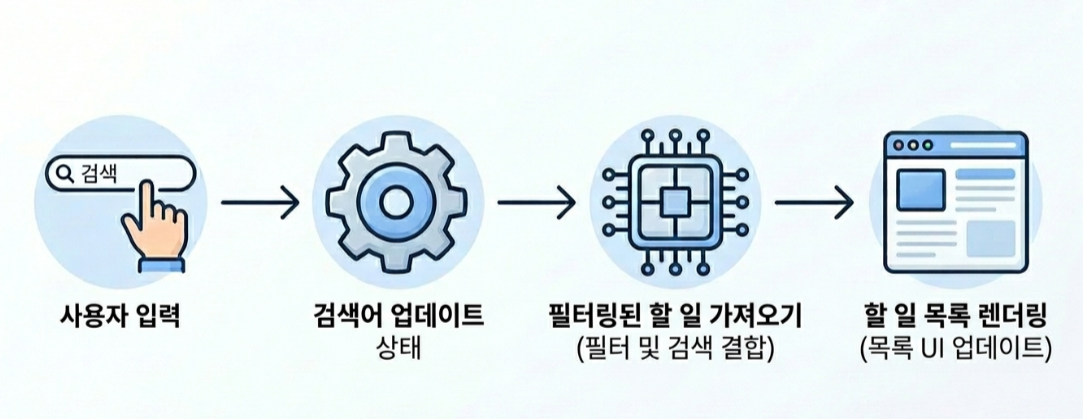
이번 편의 핵심은 JavaScript입니다. 검색 기능은 결국 현재 검색어를 따로 기억하고, 그 검색어에 맞는 항목만 다시 골라서 그리는 흐름이기 때문입니다. 여기에 기존 필터 상태까지 같이 묶이면, 이제부터는 상태를 하나만 다루는 앱에서 조금 더 나아가게 됩니다.
| 이름 | 역할 | 왜 중요한가 |
|---|---|---|
| currentSearchQuery | 현재 검색어 상태를 따로 기억합니다 | 검색 기능의 핵심 상태입니다 |
| normalizeText | 문자열을 정규화합니다 | 대소문자와 공백 차이 때문에 결과가 어색해지는 걸 줄일 수 있습니다 |
| getFilteredTodos | 필터와 검색어를 모두 반영해서 보여줄 목록을 고릅니다 | 이번 기능의 실제 핵심이 여기에 들어 있습니다 |
| clearSearch | 검색 상태를 초기화합니다 | 현재 상태를 끊고 기본 보기로 돌아가는 기준점입니다 |
script.js는 아래처럼 정리하면 됩니다.
const STORAGE_KEY = "vibe-todos";

const FILTER_TYPES = {
  ALL: "all",
  ACTIVE: "active",
  COMPLETED: "completed"
};

const elements = {
  form: document.querySelector("#todoForm"),
  input: document.querySelector("#todoInput"),
  submitButton: document.querySelector("#submitButton"),
  searchInput: document.querySelector("#searchInput"),
  clearSearchButton: document.querySelector("#clearSearchButton"),
  list: document.querySelector("#todoList"),
  message: document.querySelector("#message"),
  summary: document.querySelector("#summaryText"),
  clearAllButton: document.querySelector("#clearAllButton"),
  filterButtons: Array.from(
    document.querySelectorAll("[data-filter]")
  )
};

let todos = loadTodos();
let currentFilter = FILTER_TYPES.ALL;
let currentSearchQuery = "";
let editingTodoId = null;
let editingText = "";

function normalizeText(value) {
  return String(value || "")
    .trim()
    .toLowerCase();
}

function loadTodos() {
  try {
    const savedValue = localStorage.getItem(STORAGE_KEY);

    return savedValue ? JSON.parse(savedValue) : [];
  } catch (error) {
    return [];
  }
}

function saveTodos() {
  localStorage.setItem(
    STORAGE_KEY,
    JSON.stringify(todos)
  );
}

function setMessage(text) {
  elements.message.textContent = text;
}

function getRemainingCount() {
  return todos.filter(function (todo) {
    return !todo.done;
  }).length;
}

function getFilteredTodos() {
  let result = todos;

  if (currentFilter === FILTER_TYPES.ACTIVE) {
    result = result.filter(function (todo) {
      return !todo.done;
    });
  }

  if (currentFilter === FILTER_TYPES.COMPLETED) {
    result = result.filter(function (todo) {
      return todo.done;
    });
  }

  if (currentSearchQuery !== "") {
    result = result.filter(function (todo) {
      return normalizeText(todo.text).includes(
        currentSearchQuery
      );
    });
  }

  return result;
}

function updateComposerState() {
  const isEditing = editingTodoId !== null;

  elements.input.disabled = isEditing;
  elements.submitButton.disabled = isEditing;
}

function updateSummary() {
  const totalCount = todos.length;
  const remainingCount = getRemainingCount();
  const visibleCount = getFilteredTodos().length;

  if (currentSearchQuery !== "") {
    elements.summary.textContent =
      "검색 결과 " +
      visibleCount +
      "개 · 전체 " +
      totalCount +
      "개 · 남은 할 일 " +
      remainingCount +
      "개";
  } else {
    elements.summary.textContent =
      "전체 " +
      totalCount +
      "개 · 남은 할 일 " +
      remainingCount +
      "개";
  }

  elements.clearAllButton.disabled =
    totalCount === 0 || editingTodoId !== null;

  elements.clearSearchButton.disabled =
    currentSearchQuery === "";
}

function updateFilterButtons() {
  const isEditing = editingTodoId !== null;

  elements.filterButtons.forEach(function (button) {
    const isActive =
      button.dataset.filter === currentFilter;

    button.classList.toggle("is-active", isActive);
    button.setAttribute(
      "aria-pressed",
      String(isActive)
    );

    button.disabled = isEditing;
  });
}

function getDefaultMessage() {
  if (todos.length === 0) {
    return "아직 등록된 할 일이 없습니다.";
  }

  if (editingTodoId !== null) {
    return "수정 중에는 저장 또는 취소를 먼저 선택해보세요.";
  }

  if (currentSearchQuery !== "") {
    return "검색어에 맞는 할 일을 보고 있습니다.";
  }

  if (currentFilter === FILTER_TYPES.ACTIVE) {
    return "진행 중인 할 일만 보고 있습니다.";
  }

  if (currentFilter === FILTER_TYPES.COMPLETED) {
    return "완료한 할 일만 보고 있습니다.";
  }

  return "검색하거나 위로, 아래로 버튼으로 순서를 바꿔보세요.";
}

function getEmptyFilterMessage() {
  if (todos.length === 0) {
    return "아직 등록된 할 일이 없습니다.";
  }

  if (currentSearchQuery !== "") {
    return "검색어에 맞는 할 일이 없습니다.";
  }

  if (currentFilter === FILTER_TYPES.ACTIVE) {
    return "진행 중인 할 일이 없습니다.";
  }

  if (currentFilter === FILTER_TYPES.COMPLETED) {
    return "완료한 할 일이 없습니다.";
  }

  return "아직 등록된 할 일이 없습니다.";
}

function focusEditingInput() {
  const input = document.querySelector(
    "[data-edit-input=\"true\"]"
  );

  if (input) {
    input.focus();
  }
}

function startEditing(todo) {
  editingTodoId = todo.id;
  editingText = todo.text;

  renderTodos("할 일 수정 모드를 시작했습니다.");
}

function cancelEditing(messageText) {
  editingTodoId = null;
  editingText = "";

  renderTodos(messageText || "수정을 취소했습니다.");
}

function saveEditedTodo(todoId) {
  const nextText = editingText.trim();

  if (!nextText) {
    setMessage("수정 내용은 비워둘 수 없습니다.");
    focusEditingInput();
    return;
  }

  todos = todos.map(function (todo) {
    if (todo.id === todoId) {
      return {
        id: todo.id,
        text: nextText,
        done: todo.done
      };
    }

    return todo;
  });

  editingTodoId = null;
  editingText = "";
  saveTodos();
  renderTodos("할 일을 수정했습니다.");
}

function findTodoIndex(todoId) {
  return todos.findIndex(function (todo) {
    return todo.id === todoId;
  });
}

function canReorderTodos() {
  return (
    currentFilter === FILTER_TYPES.ALL &&
    currentSearchQuery === "" &&
    editingTodoId === null
  );
}

function moveTodo(todoId, direction) {
  if (!canReorderTodos()) {
    setMessage(
      "순서 변경은 전체 보기에서, 검색 중이 아닐 때만 할 수 있습니다."
    );
    return;
  }

  const currentIndex = findTodoIndex(todoId);

  if (currentIndex === -1) {
    return;
  }

  const targetIndex =
    direction === "up"
      ? currentIndex - 1
      : currentIndex + 1;

  if (
    targetIndex < 0 ||
    targetIndex >= todos.length
  ) {
    return;
  }

  const movedTodo = todos.splice(currentIndex, 1)[0];

  todos.splice(targetIndex, 0, movedTodo);

  saveTodos();
  renderTodos(
    direction === "up"
      ? "할 일을 위로 옮겼습니다."
      : "할 일을 아래로 옮겼습니다."
  );
}

function createCheckbox(todo, disabled) {
  const checkbox = document.createElement("input");

  checkbox.type = "checkbox";
  checkbox.checked = todo.done;
  checkbox.disabled = Boolean(disabled);

  if (!disabled) {
    checkbox.addEventListener("change", function () {
      todo.done = checkbox.checked;
      saveTodos();
      renderTodos("할 일 상태를 업데이트했습니다.");
    });
  }

  return checkbox;
}

function createTodoText(todo) {
  const text = document.createElement("span");

  text.textContent = todo.text;

  return text;
}

function createActionButton(
  label,
  className,
  handler,
  disabled
) {
  const button = document.createElement("button");

  button.type = "button";
  button.className = className;
  button.textContent = label;
  button.disabled = Boolean(disabled);

  if (!disabled) {
    button.addEventListener("click", handler);
  }

  return button;
}

function createDeleteButton(todoId, disabled) {
  return createActionButton(
    "삭제",
    "delete-button",
    function () {
      todos = todos.filter(function (currentTodo) {
        return currentTodo.id !== todoId;
      });

      saveTodos();
      renderTodos("항목을 삭제했습니다.");
    },
    disabled
  );
}

function createEditButton(todo, disabled) {
  return createActionButton(
    "수정",
    "inline-button",
    function () {
      startEditing(todo);
    },
    disabled
  );
}

function createMoveUpButton(todoId, todoIndex, disabled) {
  return createActionButton(
    "위로",
    "move-up-button",
    function () {
      moveTodo(todoId, "up");
    },
    disabled || !canReorderTodos() || todoIndex === 0
  );
}

function createMoveDownButton(todoId, todoIndex, disabled) {
  return createActionButton(
    "아래로",
    "move-down-button",
    function () {
      moveTodo(todoId, "down");
    },
    disabled || !canReorderTodos() || todoIndex === todos.length - 1
  );
}

function createReadonlyItem(todo) {
  const item = document.createElement("li");
  const left = document.createElement("div");
  const actions = document.createElement("div");
  const todoIndex = findTodoIndex(todo.id);
  const isLocked = editingTodoId !== null;

  item.className = "todo-item";
  left.className = "todo-left";
  actions.className = "todo-actions";

  if (todo.done) {
    item.classList.add("done");
  }

  left.append(
    createCheckbox(todo, isLocked),
    createTodoText(todo)
  );

  actions.append(
    createMoveUpButton(todo.id, todoIndex, isLocked),
    createMoveDownButton(todo.id, todoIndex, isLocked),
    createEditButton(todo, isLocked),
    createDeleteButton(todo.id, isLocked)
  );

  item.append(left, actions);

  return item;
}

function createEditInput(todoId) {
  const input = document.createElement("input");

  input.type = "text";
  input.className = "edit-input";
  input.value = editingText;
  input.setAttribute("data-edit-input", "true");

  input.addEventListener("input", function () {
    editingText = input.value;
  });

  input.addEventListener("keydown", function (event) {
    if (event.key === "Enter") {
      event.preventDefault();
      saveEditedTodo(todoId);
    }

    if (event.key === "Escape") {
      event.preventDefault();
      cancelEditing();
    }
  });

  return input;
}

function createEditingItem(todo) {
  const item = document.createElement("li");
  const editArea = document.createElement("div");
  const actions = document.createElement("div");

  item.className = "todo-item editing";
  editArea.className = "todo-edit";
  actions.className = "todo-actions";

  editArea.append(
    createEditInput(todo.id)
  );

  actions.append(
    createActionButton(
      "저장",
      "save-button",
      function () {
        saveEditedTodo(todo.id);
      }
    ),
    createActionButton(
      "취소",
      "cancel-button",
      function () {
        cancelEditing();
      }
    )
  );

  item.append(editArea, actions);

  return item;
}

function renderTodos(messageText) {
  const visibleTodos = getFilteredTodos();

  elements.list.innerHTML = "";
  updateComposerState();
  updateSummary();
  updateFilterButtons();

  if (visibleTodos.length === 0) {
    setMessage(messageText || getEmptyFilterMessage());
    return;
  }

  visibleTodos.forEach(function (todo) {
    if (todo.id === editingTodoId) {
      elements.list.appendChild(
        createEditingItem(todo)
      );
      return;
    }

    elements.list.appendChild(
      createReadonlyItem(todo)
    );
  });

  setMessage(messageText || getDefaultMessage());

  if (editingTodoId !== null) {
    focusEditingInput();
  }
}

function addTodo(todoText) {
  todos.unshift({
    id: Date.now(),
    text: todoText,
    done: false
  });

  currentFilter = FILTER_TYPES.ALL;
  currentSearchQuery = "";
  elements.searchInput.value = "";
  saveTodos();
  renderTodos("할 일을 추가했습니다.");
}

function clearAllTodos() {
  if (todos.length === 0 || editingTodoId !== null) {
    return;
  }

  const shouldClear = window.confirm(
    "정말 모든 할 일을 삭제하시겠습니까?"
  );

  if (!shouldClear) {
    setMessage("전체 삭제를 취소했습니다.");
    return;
  }

  todos = [];
  currentFilter = FILTER_TYPES.ALL;
  currentSearchQuery = "";
  elements.searchInput.value = "";
  saveTodos();
  renderTodos("모든 항목을 삭제했습니다.");
}

function setFilter(nextFilter) {
  if (currentFilter === nextFilter || editingTodoId !== null) {
    return;
  }

  currentFilter = nextFilter;
  renderTodos();
}

function handleSearchInput() {
  currentSearchQuery = normalizeText(
    elements.searchInput.value
  );

  if (editingTodoId !== null) {
    editingTodoId = null;
    editingText = "";
  }

  renderTodos();
}

function clearSearch() {
  if (currentSearchQuery === "") {
    return;
  }

  currentSearchQuery = "";
  elements.searchInput.value = "";
  editingTodoId = null;
  editingText = "";
  renderTodos("검색어를 지웠습니다.");
  elements.searchInput.focus();
}

function handleSubmit(event) {
  event.preventDefault();

  const text = elements.input.value.trim();

  if (!text) {
    setMessage("할 일을 먼저 입력해보세요.");
    elements.input.focus();
    return;
  }

  addTodo(text);
  elements.input.value = "";
  elements.input.focus();
}

function bindFilterEvents() {
  elements.filterButtons.forEach(function (button) {
    button.addEventListener("click", function () {
      setFilter(button.dataset.filter);
    });
  });
}

function bindSearchEvents() {
  elements.searchInput.addEventListener(
    "input",
    handleSearchInput
  );

  elements.clearSearchButton.addEventListener(
    "click",
    clearSearch
  );
}

function bindEvents() {
  elements.form.addEventListener(
    "submit",
    handleSubmit
  );

  elements.clearAllButton.addEventListener(
    "click",
    clearAllTodos
  );

  bindFilterEvents();
  bindSearchEvents();
}

bindEvents();
renderTodos();
이번 기능의 핵심은 아주 단순하게 말하면 이겁니다. 검색창에 입력이 들어오면 검색 상태가 바뀌고, 그 상태에 맞는 목록만 다시 골라서 화면을 다시 그립니다. 그 과정에서 기존 필터 상태가 함께 적용되기 때문에, 같은 검색어라도 전체 보기인지 완료 보기인지에 따라 결과가 달라질 수 있습니다.
또 하나 중요한 점은 이번 편에서 검색 중에는 순서 변경을 막았다는 부분입니다. 이건 구현을 못 해서가 아니라 지금 단계에서는 그쪽이 더 안전하기 때문입니다. 검색 결과로 일부 항목만 보이는 상태에서 순서를 바꾸면, 화면에 안 보이는 항목과의 위치 관계 때문에 결과가 헷갈리기 쉽습니다. 그래서 이번 단계에서는 사용자가 덜 혼란스러운 쪽을 택했습니다.
그리고 검색어를 바꾸는 순간 편집 상태를 정리한 것도 같은 이유입니다. 수정 중인 항목이 검색 결과에서 갑자기 사라지거나 남아 있는 상황까지 초반부터 다루면 흐름이 복잡해집니다. 지금은 검색 상태가 바뀌면 편집 상태는 한 번 정리한다는 쪽이 훨씬 단순합니다.
핵심 정리
이번 편의 JavaScript는 검색창을 붙이는 작업이 아니라, 필터 상태와 검색 상태를 함께 들고 있으면서 보여줄 목록을 다시 고르는 작업에 더 가깝습니다.
직접 눌러보며 테스트하기
이번 기능은 겉으로 보기엔 단순하지만, 상태가 두 개 이상 같이 움직이는 기능이라서 직접 눌러보는 확인이 더 중요합니다. 이번 편에서는 아래 순서로 점검해보는 편이 좋습니다.
- 검색창에 글자를 입력하면 결과가 바로 반영되는가
- 전체 보기에서 검색이 정상적으로 동작하는가
- 진행 중 보기와 완료 보기에서도 검색이 같이 동작하는가
- 검색어를 지우면 전체 목록으로 다시 돌아오는가
- 검색 중에는 위로, 아래로 버튼이 비활성화되는가
- 검색 도중 수정 모드를 시작했다가 검색어를 바꾸면 편집 상태가 정리되는가
- 수정, 삭제, 전체 삭제, 필터가 검색 기능 추가 뒤에도 그대로 동작하는가
- 새로고침 뒤에도 기존 할 일 데이터는 유지되는가
기본 동작이 안정적이라면 이번 기능은 성공이라고 봐도 됩니다. 중요한 건 "검색 결과가 나온다"보다, 검색 상태가 다른 기능들과 충돌 없이 같이 움직이는지를 보는 데 있습니다.
핵심 포인트
검색 기능은 입력창 하나보다, 다른 상태들과 충돌 없이 함께 움직이는지를 직접 눌러봐야 감이 옵니다.
Codex에게는 이렇게 나눠서 요청하면 된다
검색 기능도 Codex에게 맡길 수 있습니다. 다만 이번 기능은 필터, 렌더링, 버튼 비활성화까지 같이 엮여 있기 때문에 범위를 더 분명하게 잘라야 합니다. "검색 기능 넣어줘"라고만 하면 AI가 예상보다 넓게 흔들 가능성이 큽니다.
전체 방향을 먼저 설명받고 싶다면 이렇게 물어볼 수 있습니다.
지금 할 일 앱은 추가, 수정, 삭제, 전체 삭제,
필터, 순서 변경, 저장 기능까지 정상 동작하는 상태야.
이번에는 검색 기능만 추가하고 싶어.
검색창에 입력하면 결과가 바로 반영되게 하고,
전체, 진행 중, 완료 필터와도 같이 동작하게 해줘.
기존 기능은 유지하고 구조도 크게 뒤집지 말아줘.
먼저 어떤 파일을 왜 바꿀지부터 설명해줘.
JavaScript만 더 좁게 요청하고 싶다면 이렇게 자를 수 있습니다.
@script.js
현재 목록 렌더링 구조는 유지하고,
현재 검색어를 따로 들고 있으면서
검색 결과만 다시 보여주게 해줘.
기존 필터와 함께 동작해야 하고,
검색 중에는 위로, 아래로 버튼을 비활성화해줘.
검색 상태가 바뀌면 수정 중인 상태는 정리하는 쪽으로 가고 싶어.
새로 생길 상태값과 함수부터 먼저 설명해줘.
CSS만 정리하고 싶다면 이렇게 요청할 수 있습니다.
@style.css
검색 입력창과 검색 지우기 버튼을 추가할 거야.
기존 디자인을 크게 바꾸지 말고,
필터 영역 아래에 자연스럽게 붙는 검색 영역만 정리해줘.
검색어가 없을 때는 지우기 버튼이 비활성화된 상태가
눈에 띄게 보이게 해줘.
이런 식으로 나누면 AI가 기능 범위를 넘어가서 전체 구조를 흔들 가능성이 줄어듭니다. 결국 AI를 잘 쓰는 방식도 복잡한 문장보다 무엇은 유지하고, 어디까지만 바꿀지 같이 적는 습관에 더 가깝습니다.
핵심 포인트
Codex에게 검색 기능을 맡길 때는 "검색 넣어줘"보다 필터와 함께 동작, 기존 기능 유지, 검색 중 순서 변경 비활성화처럼 경계를 같이 주는 편이 훨씬 낫습니다.
마무리
이번 편에서 추가한 기능은 거창하지 않습니다. 검색 입력창 하나와 지우기 버튼이 생겼고, 현재 검색어에 맞는 항목만 다시 보여주게 만든 정도입니다. 그런데 실제로 앱을 써보면 이 차이가 꽤 큽니다. 이제는 목록이 길어져도 원하는 항목을 눈으로만 훑지 않아도 되기 때문입니다.
특히 이번 기능은 단순히 편리해졌다는 데서 끝나지 않습니다. 필터 상태와 검색 상태를 같이 들고 있으면서, 그 결과를 다시 화면에 반영하는 흐름을 한 번 직접 다뤄봤다는 점이 더 중요합니다. 이 감각이 붙기 시작하면, 앞으로 상태가 두세 개 겹치는 기능도 훨씬 덜 막막하게 보입니다.
검색 기능이 들어가고 나면 이 앱은 이제 "적고 지우는" 수준을 조금 넘어서기 시작합니다. 목록이 길어졌을 때도 계속 쓸 수 있는 형태로 한 단계 더 가까워졌기 때문입니다. 바로 이런 작고 분명한 기능이, 프로젝트를 생각보다 오래 살아 있게 만듭니다.
'바이브코딩 > 실습' 카테고리의 다른 글
| 바이브코딩 17편: 할 일 앱에 마감일 붙이기 (1) | 2026.04.10 |
|---|---|
| 바이브코딩 16편: 할 일 앱에 우선순위 붙이기 (0) | 2026.04.08 |
| 바이브코딩 14편: 할 일 순서를 위아래로 바꾸기 (0) | 2026.04.01 |
| 바이브코딩 13편: 할 일 앱에 수정 기능 붙이기 (0) | 2026.03.30 |
| 바이브코딩 12편: 할 일 앱에 전체·진행 중·완료 필터 붙이기 (0) | 2026.03.27 |